Upload and sign in
Choose, drop or paste a JPG, PNG or WebP image up to 30 MB. Sign in to process it; the selected image waits in this browser while you do.
Remove captions and text overlays from your images.
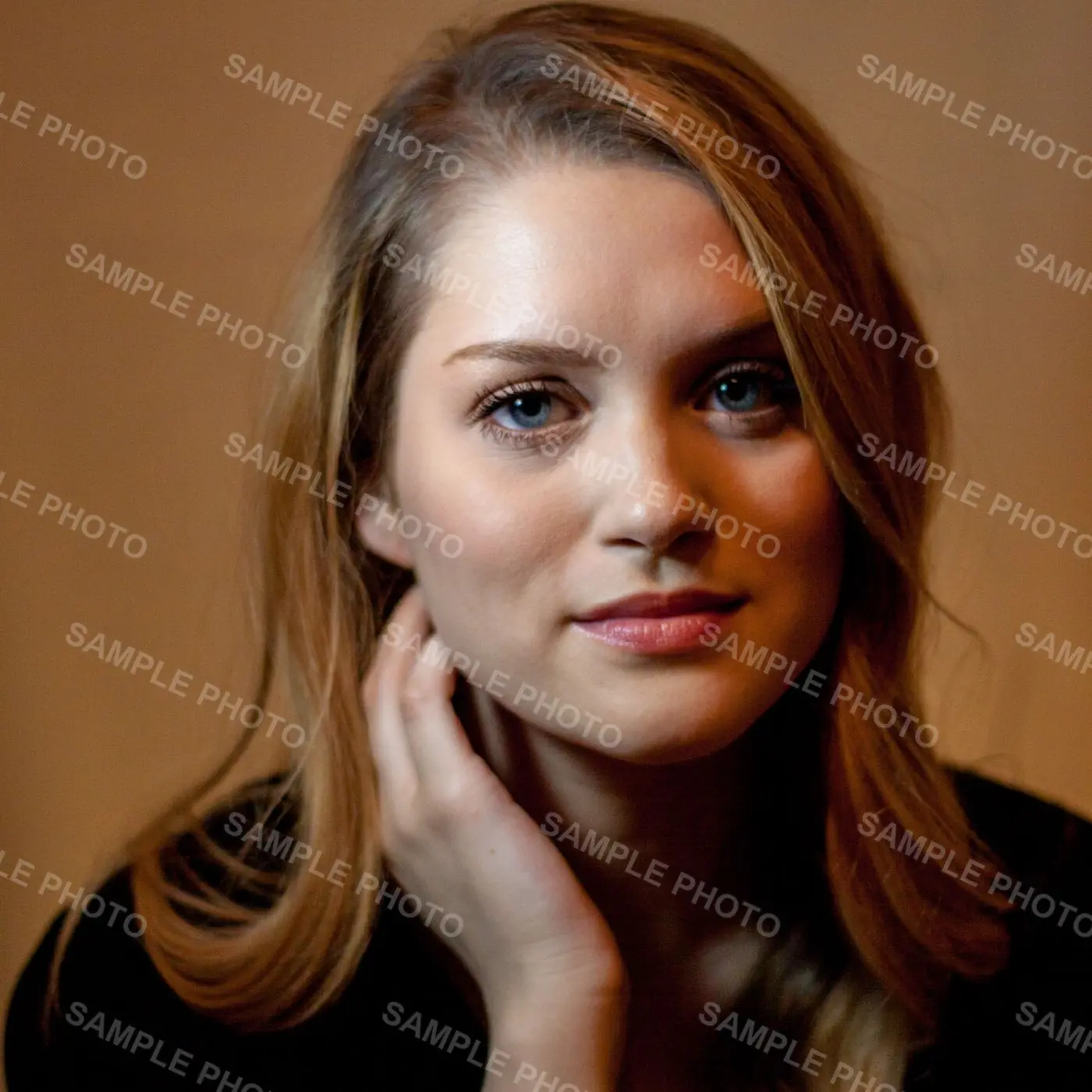
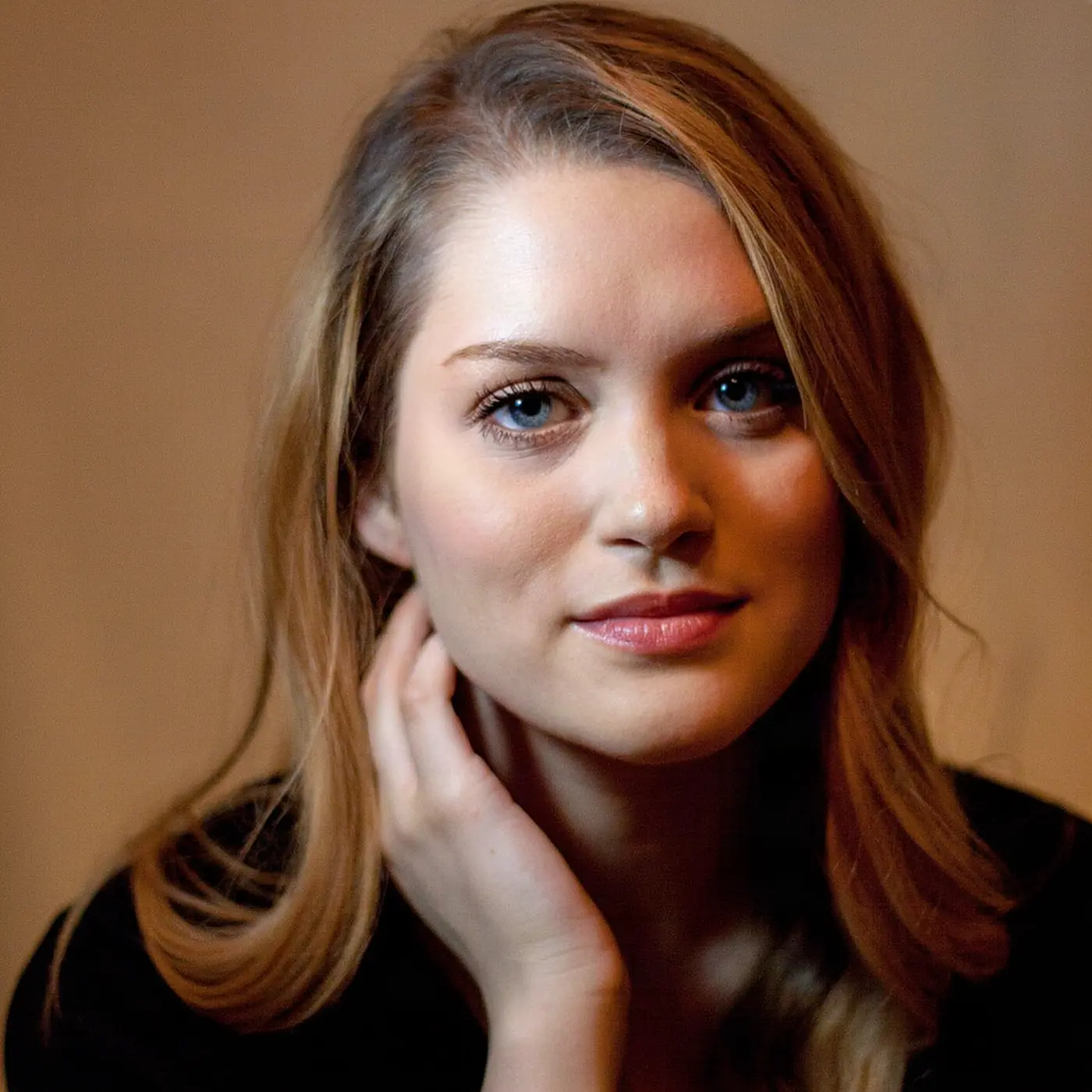 BeforeAfter
We added the repeated text to a licensed photograph for this demonstration. Drag the divider to inspect the face and background; results vary with your image.
Hirsh Philippe · pexels.comSeveral files?Try batch mode
Choose a JPG, PNG or WebP file, or drag and paste it here.
Choose, drop or paste a JPG, PNG or WebP image up to 30 MB. Sign in to process it; the selected image waits in this browser while you do.
One image task costs 1 credit. Eligible new accounts can claim 5 free credits, valid for 24 hours. Once processed, downloading the result at the original dimensions does not cost another credit.
Text over skin, hair or a patterned background may leave artifacts or change nearby details. Compare the result before using it; original dimensions do not mean every detail stays unchanged.
No. The text is removed, not blurred or covered with a patch.
Yes. Paste the screenshot, or upload it as a PNG or JPG file.
Text in English, Chinese, Japanese, Korean and other languages is removed the same way.
Yes. The download has the same width and height as the image you uploaded.